
Guide to google sync with outlook calendar: One-Way or Two-Way Sync
Posted by Robin on 12 Dec, 2025 in
Of course you can sync Google Calendar with Outlook Calendar, but how you do it really depends on what you need. It's not a one-size-fits-all situation.
For a quick and simple, view-only setup, you can subscribe to your Google Calendar's public link from within Outlook. But if you're after a true, real-time, two-way sync—where adding an event in one calendar instantly pops up in the other—you're going to need a specialised third-party app to bridge the gap.
Why Syncing Your Calendars Is a Game Changer
In so many workplaces today, different teams are on different systems. It's common to see one department running on Google Workspace while another is completely embedded in Microsoft 365. This creates an invisible wall between everyone's schedules.
Without a solid way to sync Google Calendar with Outlook, you're stuck manually checking two different places, trying to piece together someone's availability. It’s not just tedious; it's a recipe for mistakes.
This isn't just a minor headache, either. It has real consequences. Think about missing a crucial client deadline because it was only on your Google Calendar, but your team lead was checking your availability in Outlook. Or worse, the embarrassment of double-booking a new hire's onboarding session with a major project kickoff. These little oversights can slowly chip away at trust and create a lot of unnecessary stress.
One-Way vs. Two-Way Sync
The solution starts with understanding the two main ways to connect your calendars.
The first is a one-way sync, which is often called a 'subscription'. It's a bit like getting a newspaper delivered—you can see all the headlines (view events), but you can't write your own articles (edit or add new events). It gives you a read-only snapshot of one calendar inside the other. This method is easy to set up, but it often comes with a big catch: significant update delays, sometimes dragging on for up to 24 hours.
The second, and far more powerful, option is a two-way sync. This creates a live, dynamic bridge between your calendars. When you add an appointment in Outlook, it appears on your Google Calendar almost instantly, and the same happens in reverse. This kind of bi-directional flow is essential for anyone who's actively managing their schedule across both platforms.
A properly synced calendar system is more than just a convenience. It becomes the single source of truth for your time, eliminating guesswork and ensuring your availability is accurately reflected everywhere, for everyone who needs to see it.
The Need for a Unified View
Ultimately, the goal is to create one unified, reliable view of your entire schedule. This is absolutely critical for staying productive yourself and making sure your team can collaborate without friction.
When your time off, project meetings, and personal appointments are all visible in one place, you can make much smarter decisions about your time and availability. This integrated approach is also a massive boost for the accuracy of any absence management systems you use. To see how a centralised view improves planning, learn more about putting your company calendars front and centre with Leavetrack.
Getting this unified view prevents scheduling clashes and lets you manage your time with confidence, knowing nothing is going to fall through the cracks. It transforms your calendar from a simple scheduling tool into a proper command centre for your entire professional and personal life.
Choosing Your Sync Method: One-Way vs Two-Way
Getting your calendars to talk to each other isn't a one-size-fits-all solution. The best way to set up your google sync with outlook calendar really comes down to what you need to do day-to-day. Are you just trying to see another schedule at a glance, or do you need to actively manage appointments across both Google and Outlook?
Let's break down the two main options: one-way and two-way synchronisation. Getting your head around the core differences is the first step to putting scheduling chaos behind you for good.
This flowchart gives you a simple visual path to follow based on what you need from your calendars.

As you can see, the main question is simple: do you need a read-only view, or do you need a fully interactive, editable link between your calendars?
The Simplicity of One-Way Sync
A one-way sync is exactly what it sounds like: your calendar information only flows in a single direction. This is often called a calendar subscription or an ICS sync, which refers to the iCalendar (.ics) file format it uses to work.
Think of it like tuning into a radio station. You can listen to everything being broadcast, but you can't talk back to the DJ.
When you set this up, you're essentially telling Outlook to display a read-only copy of your Google Calendar. You’ll see all your Google appointments right there in Outlook, but you can’t edit them, delete them, or add new ones from that view.
This method is perfect for a few specific situations:
- Viewing a team holiday calendar: An HR manager can subscribe to a central Google Calendar for company-wide leave. It shows up in their personal Outlook for easy reference, but they don't need to change anything.
- Monitoring project timelines: A project manager using Outlook can subscribe to a client's Google Calendar to keep an eye on key deadlines without cluttering up their main schedule.
- Keeping personal and work separate: You can see your personal Google Calendar (like doctor's appointments) inside your work Outlook calendar. This helps you avoid booking conflicts, and your colleagues won't see any of the private details.
The biggest selling point of one-way syncing is its sheer simplicity. It’s a built-in feature in both Google and Outlook, which means it’s completely free and you don’t need any extra software.
But that simplicity comes with a major catch: updates aren't instant. Microsoft themselves say the refresh time for subscribed calendars can be anything from four to 24 hours. That delay makes one-way sync a non-starter for any time-critical scheduling where you need to know someone's availability right now.
The Power of Two-Way Sync
If you need a truly connected and dynamic scheduling system, a two-way sync is the only way to go. This approach creates a live, two-way bridge between your calendars, making sure they stay perfectly mirrored in real time.
With a proper two-way sync, any change you make on one calendar is reflected on the other almost immediately.
- Add a client meeting in your Outlook desktop app, and it pops up in your Google Calendar on your phone.
- Accept a meeting invite in Gmail, and the event automatically appears in your Outlook schedule.
- Reschedule an appointment on your work PC, and the update is pushed to your personal calendar in seconds.
This kind of real-time connection is absolutely essential for busy professionals who juggle both platforms. It eliminates the risk of double-booking and ensures your availability is always accurate, no matter which calendar you or your colleagues are looking at.
To achieve a true google sync with outlook calendar two-way connection, you'll almost always need a dedicated third-party tool. These services are built specifically to get around the limitations of the native calendar subscriptions. They provide the near-instant updates and reliability you need for active schedule management, making them a must-have for busy teams and individuals.
One-Way vs Two-Way Calendar Sync Comparison
To make the choice clearer, here’s a straightforward comparison of the two methods.
| Feature | One-Way Sync (ICS) | Two-Way Sync (Third-Party Tools) |
|---|---|---|
| Data Flow | Uni-directional (e.g., Google to Outlook) | Bi-directional (changes on either calendar sync to the other) |
| Editability | Read-only; cannot edit subscribed events | Fully editable from either calendar |
| Update Speed | Slow; can take 4-24 hours to refresh | Near real-time; updates typically sync within minutes or seconds |
| Setup Complexity | Simple, uses built-in features | Requires setting up a third-party account and authorising access |
| Cost | Free | Usually requires a paid subscription |
| Best for... | Viewing static schedules, team holidays, personal reference | Actively managing appointments across platforms, avoiding double-bookings, collaborative teams |
| Privacy Control | Limited; all event details are typically visible | Advanced options to sync as 'Busy' or control which details are shared |
Ultimately, the decision rests on your need for real-time accuracy and control. For a simple overview, the free ICS subscription works fine. But for anyone actively managing their time across both Google and Outlook, a reliable two-way sync tool is a small investment that pays for itself in productivity and peace of mind.
Setting Up One-Way Sync with Calendar Subscriptions
If you just need a simple, no-fuss way to see your Google Calendar events inside Outlook, the built-in Internet Calendar Subscription (ICS) is your first port of call. It’s a free, read-only feature that gives you a glimpse into another calendar. Think of it as a way to passively keep an eye on a schedule without needing to edit or interact with it.
It's really important to know what you're getting into, though. This method is strictly a one-way street; events flow from Google to Outlook, but never back the other way. And the biggest catch? The updates aren't instant. You could be waiting anywhere from four to 24 hours for new or changed events to show up in Outlook.
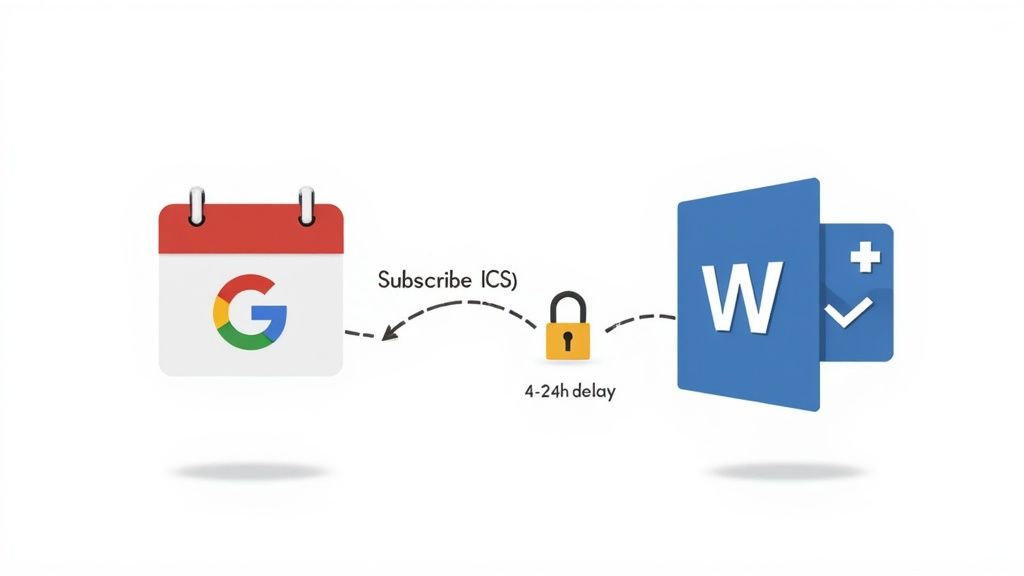
For many people, that delay is a deal-breaker. In the UK, where hybrid work is the norm, seamless calendars are essential for productivity. With 64% of businesses using Microsoft 365 and 39% on Google Workspace, scheduling mix-ups are a daily headache. In fact, many UK IT pros are now adopting specialised tools to cut scheduling errors by 35% because the lag from ICS subscriptions just can't keep pace with fast-moving teams. You can discover more insights about these integration challenges and how businesses are tackling them.
If a bit of a delay works for you, let’s get it set up.
Finding Your Secret iCal Link in Google Calendar
The whole thing works using a special, private web address from your Google Calendar. This "secret address in iCal format" is the key that lets Outlook securely pull in and display your calendar.
First, you'll need to log in to your Google Calendar on a web browser, as you can't get this link from the mobile app.
- Find the calendar you want to share in the "My calendars" list on the left.
- Hover over its name, click the three-dot menu, and choose Settings and sharing.
- Scroll down until you see the "Integrate calendar" section.
- Look for the link labelled Secret address in iCal format. This is the one you need. Don't use the public address unless you want your calendar open to the entire world—a big security risk to avoid.
This secret link keeps your events private, ensuring only people you share it with can see your schedule.
Pro Tip: Treat this secret iCal link like a password. Anyone who has it can see your calendar details. If you think it's been compromised, just come back to this page and hit the "Reset" button. It will instantly generate a new link and disable the old one.
Once you’ve copied this link, you're ready to pop it into Outlook.
Adding the Google Calendar Subscription to Outlook
The exact steps can differ slightly depending on which version of Outlook you’re using. We'll cover the main ones: the Windows desktop app, Outlook on the web, and the Mac desktop app.
For Outlook on the Web (Outlook.com)
Doing this through the web version is usually the fastest way.
- Open your calendar view in Outlook.com.
- In the panel on the left, click Add calendar.
- A new window will appear. Choose Subscribe from web.
- Paste the secret iCal link you copied from Google into the field.
- Give your new calendar a name (like "My Google Cal"), pick a colour for its events, and click Import.
Just like that, your Google events will appear on your Outlook calendar, colour-coded so you can tell them apart.
For the Outlook Desktop App on Windows
The process in the desktop client is just as simple.
- Open Outlook and switch to the Calendar view.
- On the "Home" tab in the ribbon at the top, find the "Manage Calendars" group. Click Add Calendar, then select From Internet.
- Paste your secret iCal link into the box that pops up and click OK.
- Outlook will ask you to confirm. Click Yes to add the calendar and subscribe to updates.
The calendar you just added will now show up in the navigation pane under "Other Calendars." Just tick the box next to it to overlay its events with your main schedule.
Mastering Two-Way Sync with Third-Party Tools
When a one-way, view-only setup just won't cut it, you need the reliability and speed of a true two-way sync. The native subscription method we looked at earlier, with its potential 24-hour delays, is pretty impractical for anyone actively managing a busy schedule. This is exactly where third-party tools come in, transforming how you handle your google sync with outlook calendar by creating a seamless, real-time bridge between both platforms.
These dedicated services are built to solve the precise problems that native solutions can't. They move beyond a simple read-only view to offer a dynamic, bi-directional connection. An event created in Outlook pops up in Google almost instantly, and vice versa. This immediate feedback is essential for preventing the double-bookings and scheduling mishaps that plague disconnected calendars.
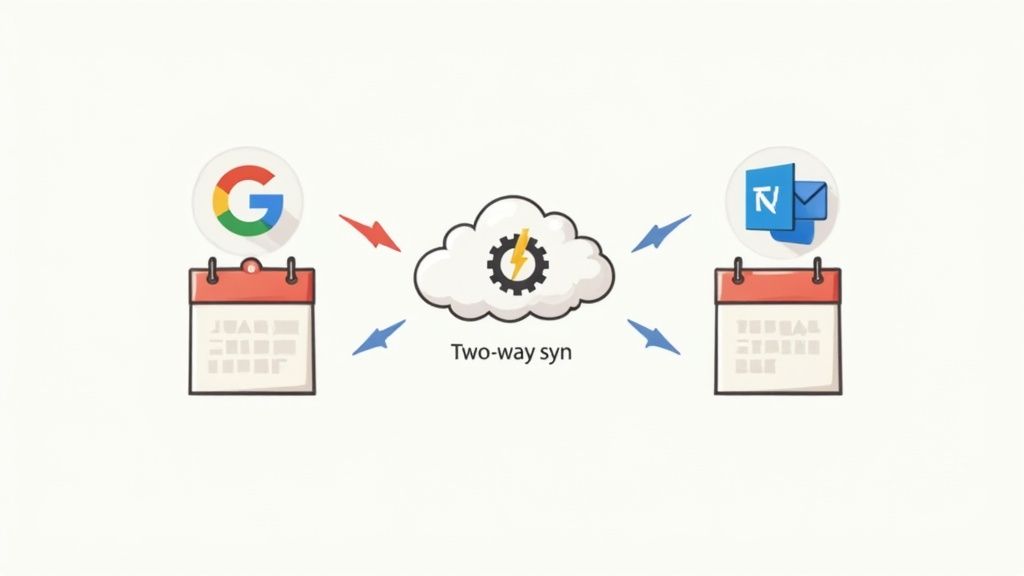
What's more, these tools preserve all the rich details of your events. Information like attendee lists, privacy settings (public vs. private), meeting descriptions, and reminders are all synced accurately. This ensures the context of an appointment is never lost in translation between platforms—something a basic ICS subscription simply can't do.
Why You Need a Dedicated Sync Tool
The rise of third-party sync tools, especially in the UK, is a direct response to the flaws in the native integrations. A significant 45% of individuals juggling both platforms face constant problems with basic ICS subscriptions, which can lag by anywhere from 4 to 24 hours. In stark contrast, advanced tools like CalendarBridge offer real-time syncing and can support up to 36 connected calendars, a massive leap from simpler solutions. You can read more about these calendar sync challenges and see how modern tools are tackling them head-on.
This capability is what makes third-party services so valuable. They aren't just a convenience; for many professionals, they are a necessity for maintaining a single, reliable source of truth for their time.
Comparing Popular Sync Services
While lots of tools offer a two-way sync, they aren't all created equal. They differ in features, pricing, and the specific problems they solve best. Let's have a look at a few trusted options.
- SyncGene: A versatile choice that syncs not only calendars but also contacts and tasks between Google, Outlook/Microsoft 365, and iCloud. It's great for individuals or businesses looking for an all-in-one solution to keep their entire digital life aligned.
- CalendarBridge: This service really excels at creating a consolidated availability view from multiple calendars. It lets you automatically block time on your main calendar based on events from others, making it perfect for consultants or freelancers who need to share a single, unified booking link with clients.
- gSyncit: A powerful desktop-based tool for Windows Outlook users. It offers a huge range of customisation options, letting you define very specific rules for how and what gets synced. This is a great fit for power users who want granular control over the whole process.
The best tool for you really depends on your workflow. Do you just need a simple 'set it and forget it' sync, or do you require advanced features like blocking availability across multiple schedules?
Key Features to Look For
When you're choosing a service, focus on the features that will have the biggest impact on your daily productivity.
Consider these factors:
- Sync Speed: How quickly do events update? For most of us, anything under five minutes feels like real-time and is more than enough.
- Privacy Controls: Can you sync events as simply "Busy" or "Tentative" without revealing all the details? This is crucial for keeping personal appointments private while still blocking off the time in your work calendar.
- Directionality: Does the tool support one-way, two-way, or even multi-calendar syncs? The ability to choose how information flows gives you much more flexibility.
- Reliability and Support: Look for a service with a solid reputation and accessible customer support. When your entire schedule depends on it, you need a tool you can count on.
Ultimately, investing in a third-party tool to manage your google sync with outlook calendar is about reclaiming control. It automates the tedious job of manual updates and gets rid of the anxiety of wondering if your availability is truly up to date. By choosing the right service, you can finally merge your digital schedules into a single, cohesive system that works for you, not against you.
Troubleshooting Common Calendar Sync Problems
Even the slickest setup between Google Calendar and Outlook can hit a snag. When your schedule is on the line, sync issues can be anything from a minor headache to a major disruption. The good news? Most problems come from a handful of common causes, and they're usually simple to fix once you know where to look.
From frustrating delays to baffling permission errors, let's walk through the most frequent sync headaches and get your calendars aligned and working smoothly again.
Delayed or Missing Event Updates
The most common complaint by far is new events showing up late, or not at all. If you’re using the one-way ICS subscription method, this is pretty much expected behaviour. Outlook can take anywhere from 4 to 24 hours to refresh a subscribed calendar feed, which makes it totally unsuitable for anything time-sensitive.
This delay is a real pain point in the UK, where Microsoft 365 holds a 64% market share against Google Workspace's 39%. It’s this exact friction that pushes around 45% of people using both platforms to give up and switch to third-party tools that can cut the sync time down to five minutes. If you’re already using a dedicated tool and still see delays, the first place to check is its dashboard for any status updates or connection errors.
Duplicated Calendar Events
Suddenly seeing double of every meeting is a classic sign something’s gone wrong. This usually happens when you’ve got more than one sync method running at the same time—maybe an old ICS subscription you forgot about and a new two-way sync tool. The fix is simple: pick one method and switch off all the others.
Time zone mismatches are another major culprit, especially after the clocks change in spring or autumn. A UK-based user on Office 365 might find that events scheduled in a different time zone suddenly start creating duplicates.
Always make sure your time zone settings are identical across your Google account, your Outlook account, and any third-party sync tool you're using. Mismatched settings are the number one cause of duplicated or incorrectly timed events.
Permission and Authentication Errors
Sometimes the link between your calendars just breaks. You might get an error message about permissions or being unable to access a calendar. This is nearly always due to an expired authentication token, which is a security feature to stop connections from staying open forever.
To fix it, you just need to re-authenticate your accounts.
- First, head into the settings of your sync tool.
- Look for the section that lists your connected accounts.
- Disconnect both your Google and Microsoft accounts.
- Then, carefully reconnect each one, granting all the necessary permissions again.
This process essentially forces a fresh digital handshake between the two services. Occasionally, authentication problems can be linked to your security settings, so having a robust login method is always a good idea. On that note, you might find our guide on setting up Google Single Sign-On helpful for simplifying secure access.
While sync issues are usually technical, remember that sometimes problems with receiving event notifications can be an email delivery issue. It's always useful to know about managing your Outlook Safe Senders list just in case. By methodically checking these common trouble spots, you can quickly sort out most sync problems.
Calendar Syncing: Your Questions Answered
Getting your calendars to talk to each other can bring up a lot of questions. When you’re relying on your schedule to be accurate, getting the setup right from the start is absolutely essential. Let's clear up some of the most common queries about making a google sync with outlook calendar work for you, so you can build an integrated diary you can actually trust.
Can I Sync My Google Calendar With The Outlook Desktop App For Free?
Yes, you certainly can. The simplest way to do this is by using Outlook’s built-in Internet Calendar Subscription (ICS) feature. You just need to grab your Google Calendar's unique iCal link and subscribe to it directly within the Outlook desktop app. Just like that, your Google events will appear.
But—and this is a big but—you need to know what you're getting. This free method is strictly one-way. You can see your Google events inside Outlook, but you can't edit them or add new appointments that sync back to Google. It's a view-only deal.
How Often Does A Subscribed Google Calendar Update In Outlook?
This is probably the biggest catch with the free subscription method. The refresh rate is entirely in Microsoft's hands, and it can be frustratingly slow. Typically, you can expect an update anywhere from every four to 24 hours.
There’s no "refresh now" button to force an update. This delay makes the free ICS approach a non-starter for anyone who needs their calendar for real-time scheduling or a true, up-to-the-minute picture of their day. If you need instant updates, a paid third-party tool is the only reliable way to go.
A common mistake is thinking a subscribed calendar is live. If you accept a meeting invite in Google, it could genuinely be a full day before it shows up in Outlook. That's a huge risk for getting double-booked.
Will Syncing My Calendars Create Duplicate Events?
Duplicate events are a real headache, and they usually pop up when you have more than one sync method running at the same time. For example, if you set up the free ICS subscription and then, a few months later, add a proper two-way sync tool without removing the old one, both systems will pull in the same events. The result? A calendar full of doubles.
To sidestep this mess, just pick one method and stick with it.
- Choose one path: Either commit to the simple one-way view or go all-in with a dedicated two-way sync tool. Don't mix and match.
- Check your time zones: Make sure the time zone settings are identical in your Google account, your Outlook account, and your sync tool. A mismatch is a classic cause of duplicates, especially when the clocks change for daylight saving.
- Clean up first: Before you set up a new sync, go in and remove any old calendar subscriptions or disable any tools you've tried in the past.
Is It Safe To Use Third-Party Tools To Sync My Calendars?
Generally, yes. The reputable third-party sync services take security very seriously. They use modern authentication protocols like OAuth 2.0, which is the same secure process you use when you click "Sign in with Google" or "Sign in with Microsoft" on other apps and websites.
With OAuth, you're giving the service permission to access your calendar data without ever handing over your password. The tool gets a secure, temporary token, not your actual login details, which is a much safer way to operate. That said, it’s always a good habit to skim the privacy policy of any app to see exactly how they handle your data before you sign up.
A well-organised schedule is the bedrock of a productive team, but managing leave and holidays across different calendars can quickly become chaotic. Leavetrack eliminates this by providing a central, automated system for all your absence management needs. See who's off at a glance, approve requests in seconds, and keep everyone's calendars perfectly in sync.
Discover a smarter way to manage team leave by visiting Leavetrack.