
Sync Outlook Calendar Google Calendar: A Practical Guide
Posted by Robin on 25 Nov, 2025 in
Trying to manage a work calendar in Outlook while juggling a personal one in Google is a headache many of us know all too well. Constantly flicking between the two isn't just annoying; it's a fast track to double-bookings, forgotten appointments, and a completely fractured view of your day.
This disjointed dance creates stress you just don't need, whether you're a freelancer trying to manage client slots or an employee navigating a bring-your-own-device world at work. The goal here isn't just to manage the chaos—it's to achieve genuine clarity.
When your calendars finally talk to each other, you get a single, unified view of all your commitments. Seeing the whole picture is the foundation of managing your time effectively.
Why a Unified Schedule Is a Game-Changer
The perks of a synchronised calendar system go way beyond just being convenient. The real advantages are where it counts:
- No More Double-Bookings: A unified view instantly flags when a work meeting clashes with a personal appointment, letting you get ahead of conflicts before they happen.
- Fewer Missed Appointments: When everything is in one place—the calendar you actually look at—the odds of something important slipping through the cracks drop dramatically.
- Streamlined Team Absences: For teams, this is massive. A central system like Leavetrack can automatically add approved leave to calendars, so everyone knows who's in and who's out. You can learn more about how updated calendar views improve team coordination.
This isn't just about a clever tech setup; it's about taking back control. In fact, some studies have shown that getting a proper two-way sync in place can cut down scheduling conflicts by as much as 60% in the first three months.
By merging your professional and personal schedules, you create a single source of truth for your time. This simple action eliminates guesswork and empowers you to make smarter decisions about how you allocate your most valuable resource—your day.
Ultimately, getting your calendar sorted is a cornerstone of being effective. And it doesn't stop there; exploring other productive work-from-home habits can give you even more ways to optimise how you get things done.
Choosing Your Sync Method: One-Way vs Two-Way
Before diving into the how-to, the first big decision you need to make is how you want your calendars to talk to each other. Your choice here dictates how everything interacts, so getting your head around the difference between a one-way and a two-way sync is key to getting the result you're after.
Think of a one-way sync as a simple "view only" feed. You're basically publishing your Outlook calendar so it shows up inside your Google Calendar. This is brilliant if all you want is to see your work meetings on your personal calendar to make sure you don't double-book yourself for a dentist appointment.
The catch? While events you create in Outlook will appear in Google, you can't edit or create work events from within your Google Calendar. It's strictly a read-only deal.
The Power of Two-Way Synchronisation
A two-way sync, on the other hand, builds a proper, interactive bridge between your calendars. It does require a third-party service to manage the connection, but the result is a game-changer for anyone managing a busy schedule.
When you add a new meeting in your Outlook calendar, it pops up in Google almost instantly. Reschedule a personal appointment in Google Calendar? That change is immediately reflected back in Outlook, blocking out the time. You end up with one, truly unified schedule that you can manage from either place.
This simple flowchart can help you visualise the choice based on whether you need to edit events on both sides.
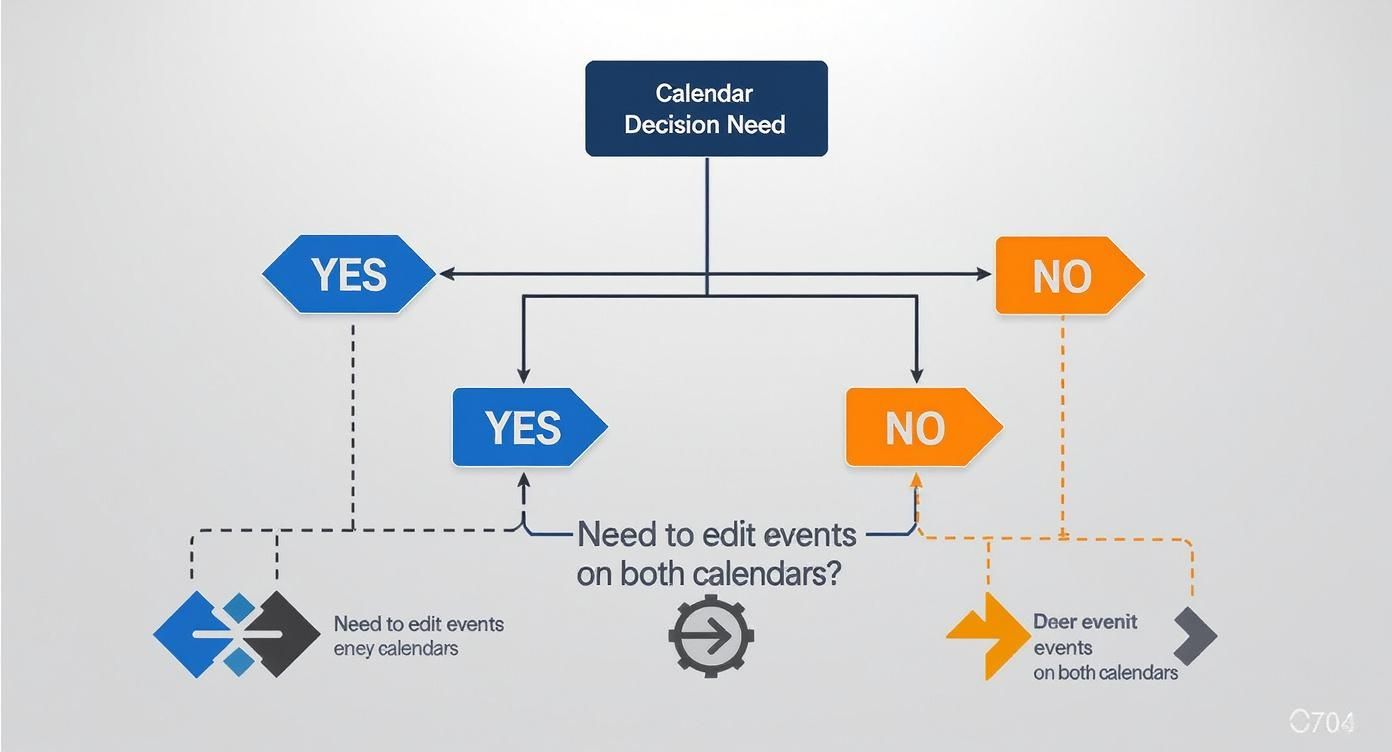
The main takeaway is pretty clear: if you absolutely need to edit events from either calendar, a two-way sync is the only way to go.
Making the Right Choice for Your Workflow
To help you decide, think about how you actually manage your schedule every day. Is your main goal just to get a quick overview of your commitments in one place? A one-way sync will probably do the job. But if you're actively managing appointments, meetings, and personal events across both platforms, you'll need the power of a two-way sync.
This table breaks down the main differences to help you choose the right path for your needs.
One-Way vs Two-Way Calendar Sync Comparison
| Feature | One-Way Sync (Publish/Subscribe) | Two-Way Sync (Third-Party Tool) |
|---|---|---|
| Setup Complexity | Simple, no extra software needed. | Requires signing up for and setting up a service. |
| Update Speed | Can lag by several hours, sometimes up to 24. | Near-instantaneous updates. |
| Editing Capability | View-only in the destination calendar. | Full create, edit, and delete capabilities on both. |
| Best For | Individuals wanting a quick, simple overview. | Professionals managing active, overlapping schedules. |
Ultimately, a one-way sync is a passive feed of information, while a two-way sync is an active, dynamic connection. For most people juggling a packed professional and personal life, the real-time accuracy of a two-way sync is essential for avoiding clashes and staying organised.
It's also worth thinking about security, especially in a team environment. When connecting accounts, using integrated and secure systems is vital. For example, teams using Leavetrack can streamline access management by using our Google Single Sign-On integration, which fits perfectly with the security-first mindset you need when linking different calendar platforms.
Setting Up a One-Way Sync from Outlook to Google
For many of us, just being able to see work commitments on our personal calendar is enough to stop us from double-booking ourselves. This is where a one-way sync really comes into its own.
Think of it as a straightforward, "view-only" feed that pushes your Outlook schedule into Google Calendar. It’s like looking at your work diary through a window—you can see everything, but you can't make any changes from the other side. This approach is perfect if you just need to check your availability on the fly without needing to edit work events from your personal phone or computer.
The whole process involves getting a special link from Outlook and then simply subscribing to it in Google Calendar. Let's walk through exactly how to do this, whether you're using Outlook on the web or the desktop app.
Generating Your Outlook Share Link
First things first, you need to grab the secret web link—often called an ICS link—that Google will use to pull in your calendar events. How you do this is slightly different depending on your version of Outlook.
For Outlook.com (The Web Version):
- Head to your calendar and click the Settings cog icon, then select Calendar.
- From there, choose Shared calendars.
- Look for the "Publish a calendar" section and select the calendar you want to share.
- Now for the important bit: choose your permission level. This is a crucial step for privacy.
- Finally, click Publish. Outlook will generate two links for you; the one you need to copy is the ICS link.
For the Outlook Desktop App:
- Open the Calendar view and right-click on the calendar you want to share.
- Navigate to Share > Publish This Calendar...
- This will probably pop open a browser window, taking you to the exact same settings page as the web version.
- From here, just follow the steps above to set the right permissions and copy that all-important ICS link.
A Quick Word on Permissions
You'll typically see two options: "Can view when I'm busy" and "Can view all details." If you're syncing a work calendar that might have sensitive meeting titles or details, choosing "Can view when I'm busy" is definitely the safer bet. It will simply block out the time on your Google Calendar as "Busy" without revealing any confidential information.
Subscribing Within Google Calendar
Got your ICS link? Great, the hard part is over. Now you just need to tell Google Calendar where to find your Outlook feed.
Open up your Google Calendar in a web browser. On the left-hand menu, find the "Other calendars" section and click the little plus (+) icon. A menu will pop up—select "From URL" from the list.
A box will appear, ready for you to paste in the ICS link you copied from Outlook. Once you've pasted it, click "Add calendar". That's it. Google will start importing your Outlook calendar, and it will soon appear under the "Other calendars" list. You can even give it a new name and change its colour to make it stand out from your personal events.
A word of warning: the initial sync, and any updates after that, can sometimes take a while. It's not always instant and can take up to 24 hours, as Google decides how often it refreshes the feed. This method works brilliantly for fairly static schedules, like keeping track of public holidays. If that's something you manage, you can learn more about importing public holidays into your calendar.
While this built-in method does the job for basic visibility, many UK-based software providers have developed much more powerful solutions. These tools often offer a true two-way sync, bringing across full event details, reminders, and even category colours. In fact, UK businesses that switch to these dedicated sync tools have reported scheduling efficiency gains of up to 40%, which is a huge time-saver.
Achieving True Two-Way Sync with Third-Party Tools
If you’re trying to actively manage your schedule across both Outlook and Google, a simple one-way sync just won’t cut it. The moment you need to edit an Outlook event from your phone's Google Calendar, you’ll hit a wall. This is where a true, bi-directional connection becomes absolutely essential.
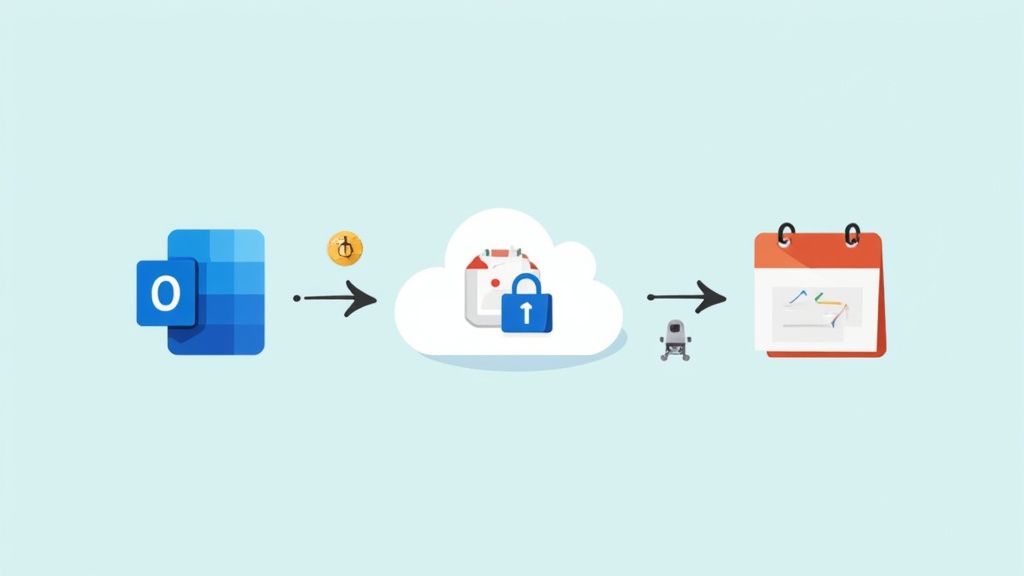
Unfortunately, neither Microsoft nor Google offers a native feature for a genuine two-way sync. Their ecosystems are built to work best on their own, which is why a trusted third-party service is needed to act as the bridge between them. These tools are specifically designed to sync Outlook calendar Google calendar data back and forth, ensuring changes made on one platform show up on the other almost instantly.
Why Use a Dedicated Sync Tool?
The core benefit is real-time updates. The native one-way method can lag by up to 24 hours, but these services push changes within minutes, sometimes even seconds. That kind of speed is vital for anyone with a dynamic, fast-changing schedule.
On top of that, these tools bring a level of customisation that the built-in options simply can't match. You get fine-grained control over exactly what information gets shared and how.
- Filter by Event Type: You could choose to only sync meetings marked as "Busy," which keeps the details of your personal appointments private.
- Selective Syncing: Sync only specific calendars instead of your entire account. This is great for preventing your work and personal calendars from becoming a cluttered mess.
- Field Mapping: Make sure event titles, descriptions, and attendees are copied over accurately between platforms, so nothing gets lost in translation.
Choosing the Right Service
When you’re looking at different tools, a few factors are crucial. While plenty of options exist, it’s best to focus on what really matters for your workflow and, just as importantly, your data security.
Before you grant any third-party service access to your calendars, take a moment to review its privacy policy. You are trusting it with your entire schedule, so understanding how your data is handled is a non-negotiable step. Reputable services use secure authentication like OAuth, which means they never see or store your Google or Microsoft passwords.
Look for a solution that balances ease of use with powerful features. Some are simple plug-and-play setups, while others offer more granular control for those with more complex needs.
Below is a quick comparison of some of the most popular tools people turn to for a proper two-way sync.
Top Third-Party Calendar Sync Tools
| Tool Name | Key Feature | Best For | Pricing Model |
|---|---|---|---|
| CalendarBridge | Automatic, real-time sync with advanced privacy controls. | Professionals managing multiple calendars who need reliability and privacy. | Subscription-based |
| SyncGene | Syncs contacts and tasks in addition to calendars across multiple platforms. | Users looking for an all-in-one sync solution beyond just calendars. | Freemium/Subscription |
| Zapier | Highly customisable "Zaps" to connect calendars with thousands of other apps. | Tech-savvy users who want to build complex, automated workflows. | Freemium/Tiered Subscription |
| OneCal | Focuses on calendar syncing and booking links with a clean, modern interface. | Individuals and teams who need to prevent double bookings and share availability. | Subscription-based |
While these dedicated apps are fantastic, they aren't the only option. Some users prefer to build their own custom integrations and leverage automation platforms like IFTTT to achieve specific calendar actions, though this approach usually requires a bit more technical know-how.
Ultimately, a good third-party tool eliminates the manual work and the anxiety of managing two separate calendars. It creates a single, reliable source of truth for your schedule, letting you add, edit, or delete an event from whichever app is most convenient at that moment. This seamless integration is the key to finally ending the calendar juggling act for good.
Troubleshooting Common Calendar Sync Problems
Even the most carefully planned tech setup can hit a bump in the road. When you're trying to sync your Outlook and Google calendars, a few common gremlins might pop up. Don't worry, most of these issues are surprisingly easy to fix once you know what you're looking for. Let's walk through the most frequent frustrations so you can get back on track without pulling your hair out.
Why Are My Events Taking So Long to Appear?
One of the biggest complaints, especially with the one-way sync method, is a massive delay in updates. You add a new meeting in Outlook, but it takes hours—or even longer—to show up in your Google Calendar. This isn't a bug; it's actually just how this particular method is designed to work.
Google is the one in control here. It decides how often to check the subscription URL for new information, and that refresh cycle can be anything from a few hours to over 24 hours. Unfortunately, there's no magic button to force an update. If you need your calendars to update almost instantly, your only real option is to switch to a two-way sync using a third-party tool.
My Events Just Say "Busy"—Where Are the Details?
Another classic problem is seeing events appear in Google Calendar with no title or description, just a block of time marked as "Busy". This almost always comes down to the permission settings you chose when you first published your Outlook calendar.
Remember when you generated that sharing link in Outlook? You had a couple of choices:
- Can view when I'm busy: This is the privacy-first option. It blocks out the time slot but hides all the juicy details.
- Can view all details: This setting shares everything—the event title, location, description, and who's attending.
To fix this, you'll need to dive back into your Outlook calendar sharing settings. Just generate a new link, making sure to select "Can view all details". Then, head over to Google Calendar, remove the old calendar subscription, and add the new one. Problem solved.
Help! I'm Seeing Double with Duplicate Events
Seeing the same event listed twice is more than just annoying; it can genuinely mess up your schedule. This issue usually happens when you’ve accidentally got more than one sync method running at the same time.
For example, you might have set up the one-way subscription from Outlook to Google, and then later installed a third-party tool to handle a proper two-way sync. Now you have two different systems both pulling the same events into your calendar, creating clones.
The fix is simple: pick one method and ditch the other. If you're committed to a two-way sync tool, go into your Google Calendar settings, find the subscribed Outlook calendar under the "Other calendars" section, and click that unsubscribe button. This makes sure only one connection is managing your schedule, which will get rid of those pesky duplicates for good.
A Few Common Questions
Getting your calendars to talk to each other can bring up some specific queries. Let's tackle a few of the most common questions we hear, clearing up any confusion so you can get your sync set up just right.
Just How Often Does the One-Way Sync Actually Update?
This is a big point of confusion for many. When you use the one-way "publish and subscribe" method, the updates are not instant. Not even close.
Google is the one in control of the refresh rate for any calendar you subscribe to, and it can take anywhere from a few hours to over 24 hours for a new event from Outlook to finally show up in Google Calendar. Unfortunately, there's no "refresh now" button you can press to speed it up.
If your schedule changes on the fly and you need to see updates in real-time to avoid double-booking yourself, this delay can be a real deal-breaker. For that kind of responsiveness, you really need to look at a dedicated two-way sync tool, as they push changes almost immediately.
Can I Set All This Up from My Phone?
In short, no. The initial setup for the one-way sync—where you publish your Outlook calendar and get that special ICS link—has to be done on a computer. You’ll need to use either the Outlook desktop app or log in to the Outlook.com website to get to the right sharing settings.
The Outlook mobile apps simply don't have this feature built-in. The good news? Once you’ve done the initial setup on your desktop, the events from your Outlook calendar will appear automatically in the Google Calendar app on your phone. No extra steps are needed there.
Key Takeaway: You need a desktop to make the initial connection, but you’ll enjoy the benefits across all your devices. Once the link is made, your phone’s Google Calendar becomes a reliable window into your Outlook schedule.
Are Those Third-Party Sync Tools Actually Safe?
It’s completely understandable to be wary about giving an app access to your calendar data. The good news is that reputable third-party tools are generally very safe. The trick is to pick a well-established service that takes security seriously.
Most of the trusted tools use a secure protocol called OAuth. This is the exact same system you use when you see "Sign in with Google" or "Sign in with Microsoft" on other websites. It works by giving the tool-specific permissions without ever sharing your actual password. The service gets a secure token to access your calendar, but your login details stay completely private.
Before you commit to any service, make sure you:
- Read their privacy policy: Get a clear idea of how they handle and store your data.
- Check the permissions they ask for: Does the tool really need access to everything it’s asking for?
- Choose a known provider: Stick with tools that have plenty of positive reviews and a transparent business model.
By taking these simple precautions, you can confidently use a third-party service to get that seamless—and secure—two-way sync you’re looking for.
For HR teams and managers, keeping everyone's schedules aligned is absolutely essential for the business to run smoothly. Leavetrack takes the headache out of absence management by integrating directly with your team's calendars, making sure everyone has a clear, current view of who is off and when. Find out how our system can save you time and put an end to scheduling conflicts at https://leavetrackapp.com.