
google calendar outlook sync: Quick Setup & Tips
Posted by Robin on 02 Dec, 2025 in
Trying to juggle a personal Google Calendar and a work Outlook calendar is a recipe for chaos. We've all been there: frantically switching between apps, trying to remember if that 4 PM slot is free, and eventually, the inevitable double-booking. A google calendar outlook sync isn't just a neat trick; it's the only way to get a single, clear view of your entire schedule.
Why Syncing Calendars Is a Game Changer

The old idea of a hard line between our work and personal lives has well and truly vanished. In its place is a blended reality where a divided calendar just doesn't work. Imagine a consultant in London trying to lock in client meetings via Outlook while vaguely remembering a dentist appointment logged in their personal Google Calendar. This kind of disconnect creates mental clutter and wastes time.
Here in the UK, with hybrid and remote work now the norm, calendar integration has become a genuine productivity essential. Consider that Microsoft 365 holds a whopping 64% market share among UK businesses, while Google Workspace is used by 39%. It's incredibly common for professionals to have a foot in both camps. Making these two platforms talk to each other is the only way to avoid constant scheduling clashes.
The True Cost of a Disjointed Schedule
Managing two separate calendars isn't just a minor hassle; it's a productivity killer. Every time you switch apps to check your availability, you shatter your concentration and disrupt your workflow. It's this context-switching that leads to simple mistakes, like offering a client a time that’s already booked for a personal commitment.
A unified calendar gives you back control.
- Complete Visibility: See your entire life—work meetings, family events, personal appointments—all in one place. It makes spotting potential conflicts effortless.
- Reduced Stress: Finally, you can stop worrying about double-booking or forgetting something important.
- Improved Efficiency: Managing everything from one interface means you can make decisions faster and get on with your day.
When you bring all your commitments into a single view, your calendar stops being a simple scheduling tool. It becomes a powerful personal assistant that actively protects your time and focus.
Understanding how different tools can connect is crucial for a smoother workflow. A detailed tutoring software integrations guide provides some great insights into these wider benefits. It’s the same principle we follow at Leavetrack: making calendars a core part of any system, especially for managing staff leave, is fundamental for proper team coordination. You can read more about why we're making calendars a priority here.
Getting Your Google Calendar into Outlook (One-Way)
The quickest and easiest way to see your Google Calendar events inside Outlook is by using a built-in feature called an Internet Calendar Subscription (ICS). Think of it as creating a read-only mirror of your Google Calendar that lives inside your Outlook.
There's no extra software to install, and you can get it sorted in just a few minutes. It's the perfect starting point for anyone who just wants to see all their commitments in one place.
This approach is brilliant for personal use cases. Imagine seeing your personal Google Calendar—packed with dentist appointments, kids' school events, and family reminders—right alongside your work schedule in Outlook. You won't be able to edit the Google events from Outlook, but you’ll get a full picture of your availability. For most people, that's exactly what they need.
First, Grab Your Calendar's Secret Link
To get started, we need a special, private link from your Google Calendar. This isn't the usual link you'd use to share your calendar with a friend; it's a unique URL made specifically for apps like Outlook to "subscribe" to.
Here’s what to do:
- Open up Google Calendar in your browser.
- On the left-hand side, find the calendar you want to sync. Hover over its name, click the three dots, and choose Settings and sharing.
- Scroll down the page until you see a section called "Integrate calendar". You're looking for a field labelled Secret address in iCal format.
- That URL is the magic key. Click the little copy icon next to it. It's really important to keep this link private—anyone who has it can see all your calendar events.
The screenshot below shows you exactly where to find this "Secret address in iCal format". It can be a bit buried, but it's there!
This address is basically a private feed that tells Outlook when your schedule changes. Now, let’s go and plug it into Outlook.
Next, Add the Calendar to Outlook
With your secret iCal address copied, the final step is to tell Outlook about it. The process is a little different depending on whether you’re using the Outlook desktop app or the web version, but the end result is the same.
If You're Using the Outlook Desktop App:
- Head to the File menu, click Account Settings, and then select Account Settings from the dropdown.
- In the new window, click on the Internet Calendars tab and then hit New....
- Paste in the secret iCal address you copied from Google and click Add.
If You're Using Outlook on the Web:
- Switch to the Calendar view.
- In the navigation pane on the left, click Add calendar.
- Choose Subscribe from web. Paste your secret iCal address into the box, give the calendar a friendly name, and click Import.
My Top Tip: Once the calendar is imported, give it a sensible name in Outlook like "Personal Google Cal" or "Family Schedule". It makes it much easier to spot and you can quickly hide or show it when you need to.
It’s worth remembering what this method can and can't do. It's fantastic for viewing your appointments, but the updates aren't instant. Any changes you make in Google Calendar might take a few hours to show up in Outlook. It’s a small price to pay for such a simple setup. If you absolutely need real-time, two-way synchronisation, you’ll have to look at one of the other methods.
Viewing Your Outlook Calendar in Google
Now, let's flip the script. What if your work life is based in Outlook, but you prefer managing everything else in Google Calendar? You can definitely pull your Outlook events into your Google view.
The way this works is by "publishing" your Outlook calendar. This creates a special web link (an ICS file) that Google Calendar can subscribe to, giving you a one-way, read-only peek at your work schedule inside your personal calendar. It's a lifesaver for quickly checking work commitments on your phone without firing up the Outlook app, helping you avoid that dreaded moment you realise you've double-booked a dentist appointment over a client meeting.
Publishing Your Outlook Calendar
First things first, you need to get that special link from Outlook. The exact steps can differ a little between the desktop app and the web version, but the end goal is the same: find the calendar sharing settings and publish it.
Head into your Outlook settings, find the Calendar section, and then look for Shared calendars. You should see an option to Publish a calendar. This is where you have to make a key decision about how much information you're comfortable sharing.
You'll need to choose a permission level for this shared link. The two you'll almost always see are:
- Can view when I'm busy: This is the most private option. It only shows blocks of time marked as "Free," "Busy," or "Tentative," with no other details. Perfect for just seeing your availability.
- Can view all details: This shares everything—event titles, locations, notes, the lot. Only choose this if you're completely happy with all that information being visible via a public link.
After you've picked your permission level and hit Publish, Outlook will create two links for you. The one you want is the ICS link. Go ahead and copy it.
Adding the Outlook Feed to Google
With that ICS link on your clipboard, pop over to your Google Calendar. On the left-hand menu, look for "Other calendars" and click the little plus (+) sign next to it. From the menu that appears, choose From URL.
Now, just paste the ICS link you copied from Outlook into the field and click Add calendar.
Google will take a moment to import everything, and then you'll see your Outlook events appear right alongside your personal ones. Just like we did before, it's a good idea to rename this new calendar to something obvious like "Work Schedule (from Outlook)." It just keeps everything tidy. On that note, many people also find it helpful to pull in public holidays for better planning. You can learn more about importing public holidays into team calendars to get an even clearer view of your schedule.
This simple diagram shows the decision process for whether public sharing is even an option for you.
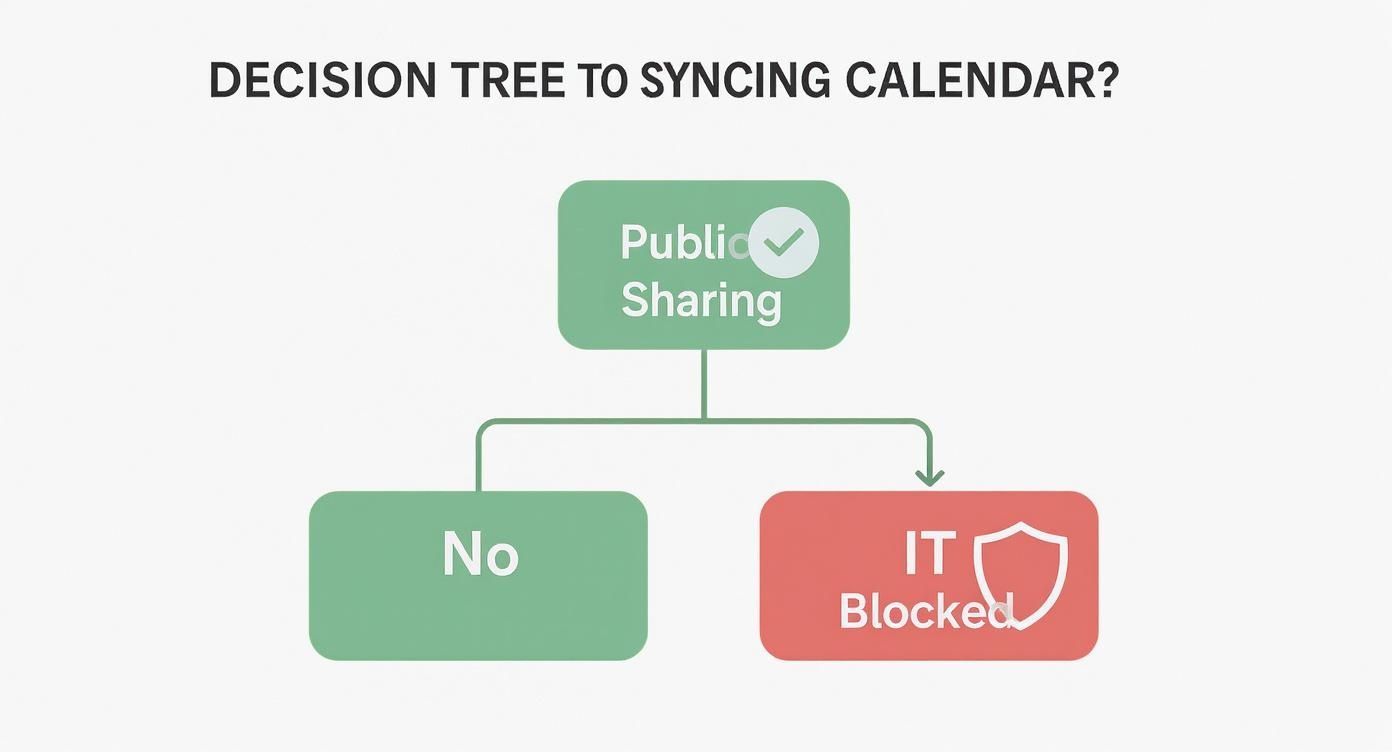
As you can see, the biggest hurdle isn't usually a technical one—it's your internal IT policy.
A common roadblock you might hit is with corporate security. Many IT departments block the ability to publish calendars publicly to prevent accidental data leaks. If the "Publish" option is greyed out or you get an error, this is almost certainly why. You'll need to speak to your IT team to see if there's an approved alternative.
Achieving a True Two-Way Automated Sync

For anyone juggling appointments across both platforms, the one-way methods we've covered just won't cut it. When you absolutely need changes in Google Calendar to show up in Outlook instantly (and vice-versa), a true two-way sync is the only way to go. This is the gold standard for a google calendar outlook sync, creating one unified schedule that works flawlessly.
This level of integration is more than just subscribing to a calendar feed; it's about genuine automation. It means accepting a meeting invite in Outlook instantly blocks out the time in your Google Calendar. Rescheduling a personal appointment in Google immediately frees up that slot for colleagues to see in Outlook.
Native Syncing in Corporate Environments
In certain corporate setups, a native two-way sync might be possible without reaching for extra tools, particularly in organisations heavily invested in the Microsoft ecosystem. Understanding the underlying tech, like a Microsoft Exchange Server, can give you an idea of what's possible.
If your company runs on Exchange, the IT department might have a way to connect accounts, but this is pretty rare and often involves a complex back-end configuration. For most of us, especially those mixing a corporate Outlook account with a personal Google one, this isn't a realistic option.
The reality is that for most people, achieving a flawless, automated two-way sync requires a little outside help. This is where dedicated third-party services become indispensable.
The Power of Third-Party Sync Tools
Third-party automation tools are, by far, the most reliable and popular way to get a real-time, two-way sync up and running. These services are built specifically to bridge the gap between Google and Microsoft, running quietly in the background to keep your calendars perfectly aligned. They handle everything—new events, updated details, attendee lists, you name it.
The technical challenge of syncing these platforms is significant, which is why a dedicated tool is so effective. In fact, this difficulty has led 43% of UK IT professionals to adopt specialised sync software to manage dynamic schedules. For many large UK companies, this has resulted in a 35% reduction in calendar-related scheduling errors. You can read more about these findings on OutlookGoogleCalendarSync.com.
- Real-Time Updates: Most paid tools offer sync frequencies of five minutes or less, practically eliminating the risk of double-booking.
- Detailed Synchronisation: They can sync titles, descriptions, locations, and attendee lists, not just simple busy/free blocks.
- Privacy Controls: Many services let you anonymise events. Your work calendar can show you're "Busy" without revealing the details of a personal appointment.
Comparing Third-Party Sync Tools
Choosing the right tool often comes down to your specific needs—how fast you need updates, what level of detail you require, and of course, your budget. To help you decide, here’s a quick comparison of some popular options available to UK users.
| Tool Name | Sync Type | Typical Sync Speed | Free Option | Typical UK Price |
|---|---|---|---|---|
| SyncGene | Two-Way | 5-15 minutes | Yes (limited) | ~£8.50/month |
| Zapier | Two-Way (Trigger-based) | Near-Instant | Yes (limited tasks) | Starts ~£16/month |
| CalendarBridge | Two-Way | Near-Instant | No | Starts ~£4/month |
| G-Syncit | Two-Way (Desktop) | User-defined | No (Trial only) | ~£16 (One-off) |
Ultimately, the best tool is the one that fits seamlessly into your workflow. While free options are tempting, the small investment in a paid plan often pays for itself by preventing just one scheduling mistake.
The choice often comes down to cost versus features. Free tiers might sync once an hour, which is often too slow for busy professionals. Paid plans offer the near-instant sync that truly unifies your schedule. It’s an investment in reclaiming your time and focus. Plus, simplifying access through methods like single sign-on can make your entire workflow smoother; our guide on setting up Google Single Sign-On shows how this can boost both security and convenience.
Troubleshooting Common Sync Problems

Even with a perfect setup, a Google Calendar Outlook sync can sometimes hit a snag. It's frustrating when your schedules fall out of line, but the fix is usually quite straightforward once you know where to look. Let's walk through the most common issues and how to sort them out.
One of the most frequent complaints I hear comes from using the one-way ICS subscription method. You pop a new event into your Google Calendar, but it takes what feels like an eternity to show up in Outlook. This isn't necessarily a broken sync; more often than not, it's just a normal delay.
This lag is a well-known limitation. In fact, UK user research shows that 45% of individuals who use both platforms run into sync problems because of poor native integration. The average delay for ICS subscriptions can be anywhere from 4 to 24 hours, a world away from third-party tools that can sync in under five minutes. You can find more insights on these syncing delays and potential solutions over at calendarbridge.com.
Events Aren't Updating Quickly
If you're using the free ICS subscription method, patience really is a virtue. Outlook is in control of how often it checks your Google Calendar for updates, and there’s no button you can press to speed it up.
- The Solution: You just have to wait. For non-urgent scheduling, this delay might be perfectly acceptable.
- The Alternative: If you need real-time updates, the only reliable fix is moving to a dedicated third-party sync tool that offers almost instant synchronisation.
Permission Errors When Sharing Calendars
Another headache, especially in a corporate setting, is the dreaded "permissions error." You try to publish your work Outlook calendar so you can see it in Google, but you’re immediately met with a roadblock.
This is almost always a security measure put in place by your IT department. Companies often disable public calendar sharing to prevent sensitive information from being accidentally leaked. The fix isn't a technical one on your end; it's organisational. You’ll need to get in touch with your IT support team and ask them about the approved ways to share your calendar.
Pro Tip: When you contact IT, don't just ask to "share your calendar." Frame it around your goal: "I need to see my work availability on my personal calendar to avoid double-booking meetings." This explains the business case and helps them point you towards an approved solution.
Handling Duplicate Events
Are you seeing double after setting up a new sync? Duplicate events usually happen when you have more than one sync method running at the same time. For example, you might have an old ICS subscription still active alongside a new two-way sync tool.
The solution here is to do a bit of housekeeping. Head into your Outlook and Google Calendar settings and remove any old or redundant calendar subscriptions you set up in the past. Sticking to a single, reliable method is the best way to keep your schedule clean and accurate.
Your Sync Questions Answered
When you start digging into how to sync Google and Outlook calendars, a few common questions always seem to surface. We’ve pulled together the ones we hear most often to give you clear, straightforward answers and get you past any hurdles you've hit.
Can I Get a Real-Time Two-Way Sync for Free?
Honestly, getting a true, real-time two-way sync without spending any money is nearly impossible using the standard built-in tools. That one-way ICS subscription method we covered is free, but it's notorious for frustrating update delays that can sometimes stretch to several hours.
Some third-party tools do dangle the carrot of a free plan, but they almost always come with some pretty significant catches.
- Slow Syncing: A free service might only update your calendars once every hour, or sometimes even less.
- Event Caps: You’ll likely be limited to syncing a certain number of events each month.
If you need a genuine, instantaneous two-way sync where changes pop up in seconds, a paid third-party service is pretty much always the only way to go.
How Safe Are Third-Party Sync Tools?
The reputable tools are generally very safe, but it's absolutely vital to do your homework. The most secure services use a technology called OAuth 2.0 to connect to your accounts. In simple terms, this means you grant the tool permission to access your calendar without ever handing over your actual password.
Before you sign up for anything, take a couple of minutes to scan its privacy policy. It should clearly spell out how your data is handled and stored. Your best bet is to stick with well-known providers that have a solid reputation and plenty of positive user reviews to minimise any risk.
The gold standard is finding a tool that lets you sync your availability without sharing the sensitive details of your appointments. This keeps your private life confidential while still blocking out the time in your work calendar.
Will Syncing Share All My Private Event Details?
Not unless you tell it to. You actually have a lot of control over what information gets shared between your calendars. When you publish an Outlook calendar to create that ICS link, you can specifically choose to share "Free/Busy information only." It’s a fantastic option if privacy is a concern.
Likewise, many of the best two-way sync tools offer advanced settings to anonymise your event details. You can configure them to create generic "Busy" blocks in your work calendar, which perfectly hides the specifics of your personal appointments while still preventing anyone from booking over them.
Why Won't My Corporate Outlook Calendar Share?
This is probably the most common roadblock people run into, and nine times out of ten it’s down to your company's IT security policy. Many organisations deliberately disable the ability to publish or share calendars externally. It’s a security measure designed to stop sensitive company information from accidentally leaking out.
If the sharing options in your Outlook settings are greyed out or you’re hit with a permission error, your only real option is to talk to your IT department. They might have an officially approved tool or method for you to use, or they may simply deny the request based on company policy.
A clear view of staff availability is crucial for smooth operations. Leavetrack provides a shared team calendar that integrates seamlessly, ensuring everyone knows who is off and when, eliminating guesswork and preventing scheduling conflicts. Find out more at https://leavetrackapp.com.